How Lola Notes works
Lola Notes lives in your Mac menu bar. It records the call, transcribes it on your Mac, and hands you notes that start with what's yours to do. Here is each step.
Before the call: it notices
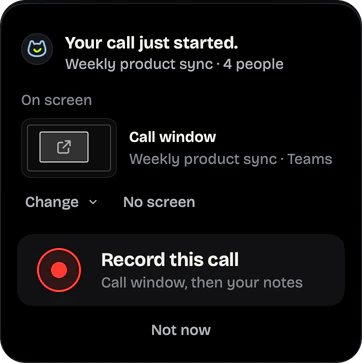
When a call starts, Lola Notes says "Your call just started." Tap Record this call, or Not now. It asks once per call.
- The call window is picked for you, so the rest of your screen stays out. Change it to a screen, a window or No screen.
- While you share your screen in the call, it records the screen you share. Private apps stay hidden.
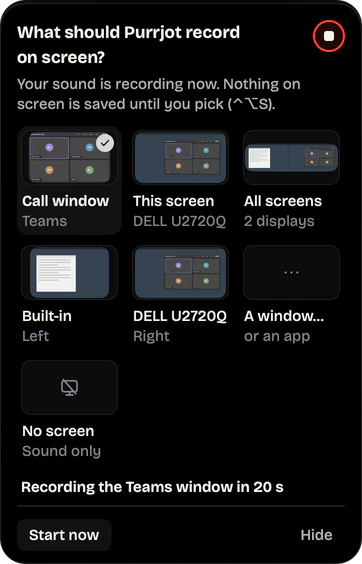
- The sound starts at once. If you don't answer the screen question, it records the ticked choice after 20 seconds.
- When the call ends, it stops by itself. You get a few seconds to tap Keep recording.
- Prefer no questions? Let it record on its own when a call starts.
- If it doesn't offer, click the cat in the menu bar or press ⌥⌘R.

Pick what's on screen
Tap Change to see every choice as a small picture: the call window, this screen, all screens, each display, another window or app, or No screen for sound only.
Switch during the call with ⌃⌥S, without stopping. Hide private apps keeps apps like Passwords and 1Password out of the video.
During the call: stay in it
Lola Notes records the screen you chose, your microphone and the call's sound. A live transcript builds as you talk, made on your Mac by Apple's on-device speech engine.
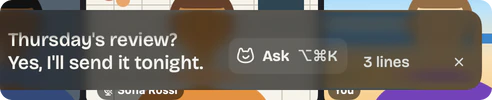
- Live captions on glass over the call. Drag them, resize them, or make them full screen to read everything so far and find a word.
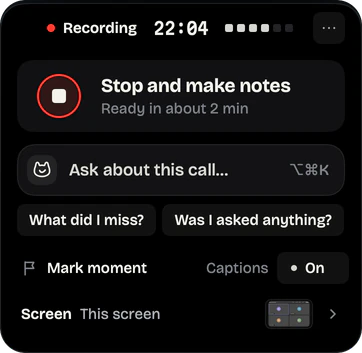
- What did I miss? sums up the last few minutes. Was I asked anything? checks for questions to you.
- Ask about this call with ⌥⌘K. Only you see the answer, and it hides while you share your screen.
- Mark moment flags the second that mattered. Add a note drops your own words in at that time.
The timer stays on screen while you record, and you can drag it anywhere. Stop is one click away: in the timer, in the menu bar, or with ⌥⌘R.

Captions you can read from across the room
Make the captions full screen to see everything said so far, with the time on every line. Find a word, or ask about it, without leaving the call.
After the call: what's yours, first
Press Stop and make notes. Then three things happen.
1. A final transcript, on your Mac
A second pass with NVIDIA Parakeet (via FluidAudio) makes the final transcript and separates speakers. Echo of the call picked up by your mic is filtered out.
2. AI writes the notes
Only text is sent, such as the transcript, screen text and your own notes, through Lola Notes' server, which doesn't keep it. Never audio or video. The full list.
3. The brief: yours first
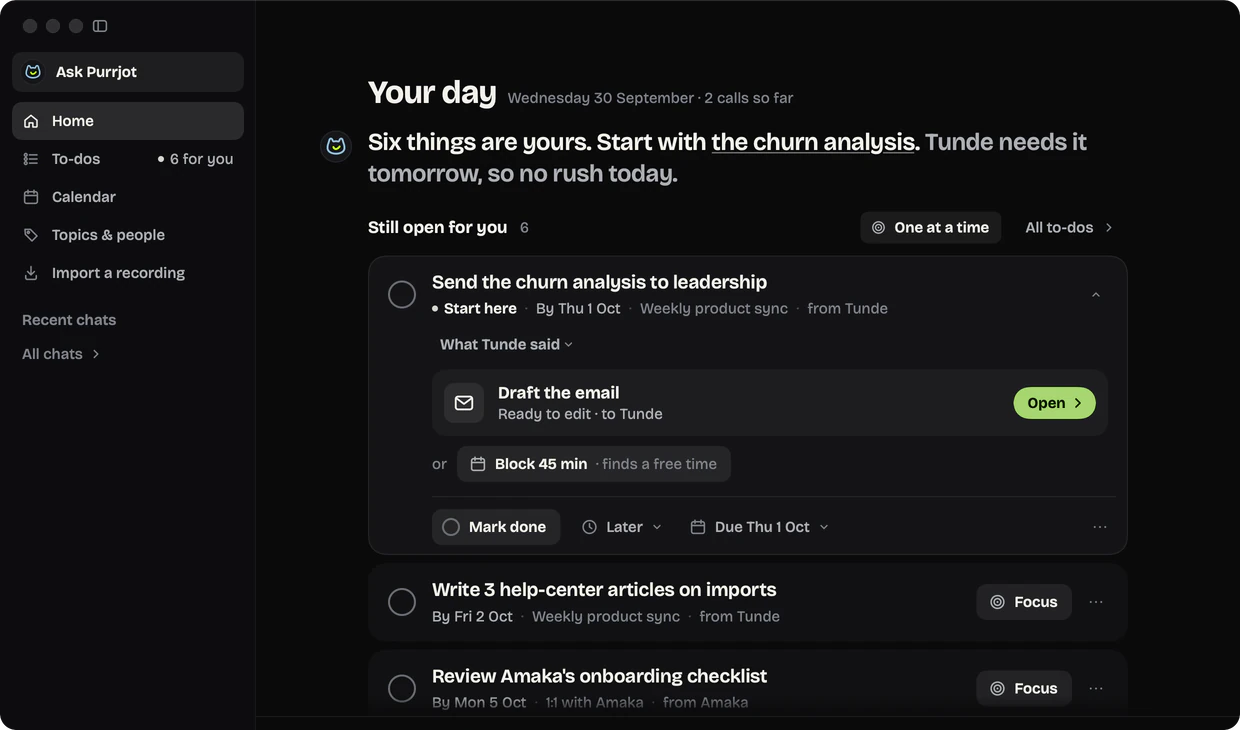
"Two to-dos are yours. Start with…" Each to-do has one next move, like a drafted email. Then a summary, decisions, others' to-dos, open questions and the slides. Why this order helps with ADHD.
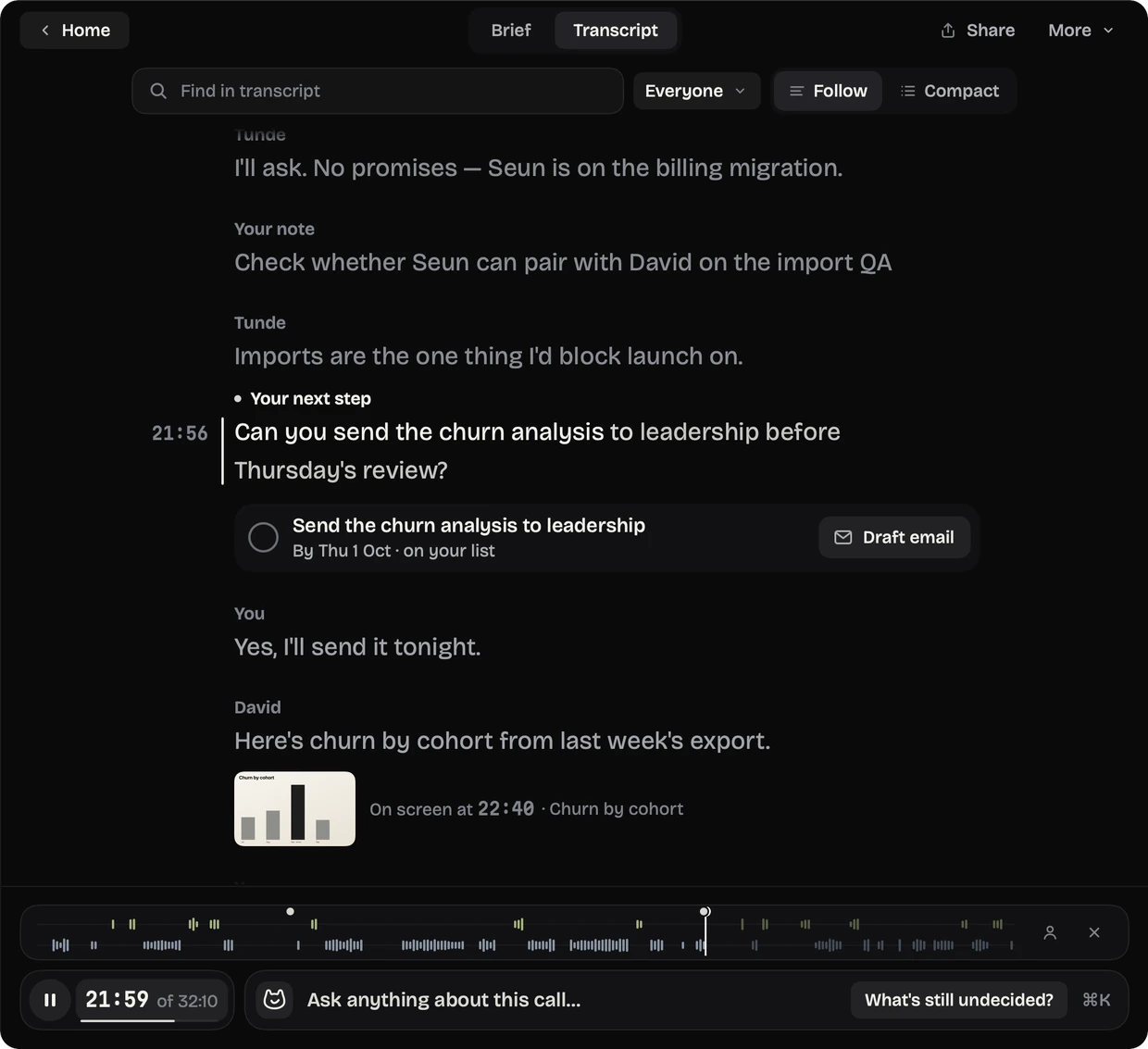
The notes ready card opens the brief, and adds your to-dos to Apple Reminders in one click. With Calendar access, the meeting gets its real name and attendee list. AI notes are free for 120 minutes a month, and Pro gives you up to 15 hours. See plans.
Later: ask, your day, calendar, topics
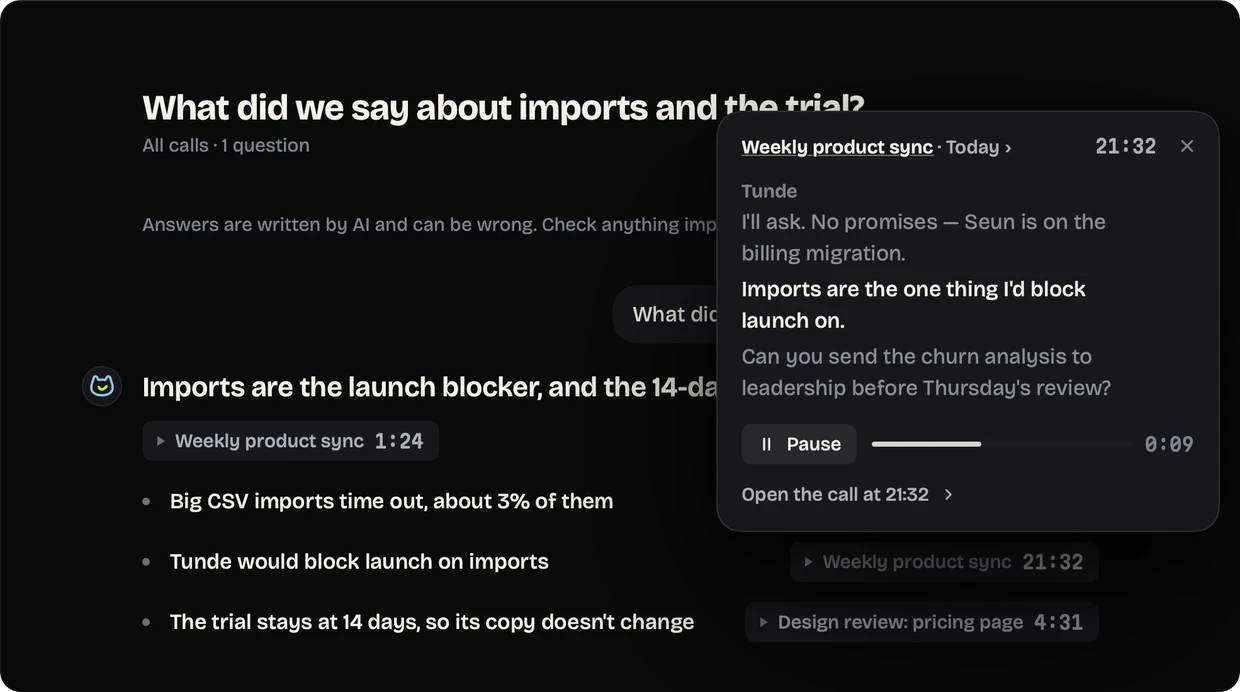
Home shows your day: what's yours across every call, and where to start. Ask about one call or all of them, with ⌘K. Answers link to the call and use time chips like 22:06: tap one to see who said it, and play it.
Bring in old recordings
Have a recording already? Import any audio or video file, or a Voice Memo. You get the same transcript, speakers and notes as a live call.
What you need
- A Mac with Apple silicon, macOS 26 Tahoe.
- An email address, to sign in for AI notes and answers. Free covers 120 minutes of AI notes a month, with no API key and no card. See the plans.
- A call app on your Mac: Zoom, Google Meet, Teams, Slack, FaceTime, Webex or the Phone app. See every call app.
Shortcuts
| Action | Shortcut |
|---|---|
| Start or stop recording | ⌥⌘R |
| Ask about this call | ⌥⌘K |
| Ask Lola Notes, in the window | ⌘K |
| Change what's recorded on screen | ⌃⌥S |
Or use the Lola Notes button in Control Center.
Tell people you're recording
No bot joins the call, so nobody gets an automatic notice. Say it at the start, or paste a line in the chat. Some places require everyone's consent. How to ask, with messages you can paste.
Get early access
Leave your email and we'll tell you when you can try Lola Notes. The Free plan needs no card.