How to screen record on a Mac with internal audio
On macOS 27, press ⇧⌘5, click Options and turn on Include System Audio. Then record. The video includes the sound your Mac plays.
On macOS 26 Tahoe, the built-in tools record a microphone, not your Mac's own sound. To record a call with both sides, use an app that captures call audio, like Lola Notes.
On macOS 27: turn on Include System Audio
Apple added an option to the Screenshot app in macOS 27 Golden Gate. It records the sound your Mac plays, along with the screen.
- Press ⇧⌘5 to open the Screenshot toolbar.
- Pick Record Entire Screen, Record Selected Window or Record Selected Portion.
- Click Options and turn on Include System Audio. To add your own voice, choose a microphone in the same menu.
- Click Record.
On macOS 26: the mic only
macOS 26 Tahoe has no Include System Audio option. The Screenshot app records your screen and, if you pick one, a microphone.
So anything your Mac plays, like a video or a call, is only in the file if your mic picks it up from the speakers. It sounds thin and distant. With headphones on, it isn't there at all.
macOS 26 did add Record Selected Window, which is handy for recording one app without the rest of your screen.
With QuickTime Player
Open QuickTime Player and choose File › New Screen Recording, or press ⌃⌘N. Check the options next to the Record button, then record the whole screen or drag to select an area.
Apple's page describes Include System Audio for the Screenshot app. If you need the Mac's sound, start from ⇧⌘5.
Stop, and find the file
- To stop, click the Stop button in the menu bar, or press ⌃⌘Esc.
- The video is saved to your desktop as "Screen Recording [date] at [time].mov".
- To save somewhere else, change the location under Options before you record.
Recording a call instead
A screen recording of a call gives you a video file. There's no transcript, no speaker labels and no notes.
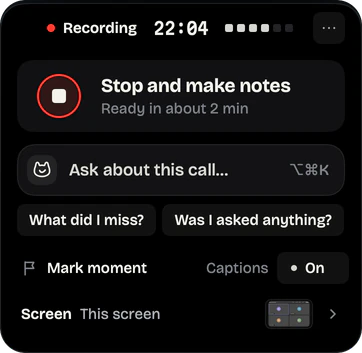
Lola Notes is a menu-bar app built for calls. It records your screen, your mic and the call's audio on macOS 26 Tahoe. It transcribes on your Mac, separates speakers, reads the slides, and writes notes that start with your next steps.
Choose the call window, a display, or no screen at all, and keep private apps like Passwords out of the video.
Tell people you're recording
No bot joins the call, so nobody gets an automatic notice. Say it at the start, or paste a line in the chat. Some places require everyone's consent. How to ask, with messages you can paste.
Questions
Why does my Mac screen recording have no sound?
On macOS 26, the built-in tools record a microphone, not the Mac's own sound. Check that a microphone is chosen under Options. On macOS 27, turn on Include System Audio.
Can I record a Zoom or Teams call with the Screenshot app?
On macOS 27, yes, with Include System Audio. You get a video file only. For a transcript and notes, use a call recorder like Lola Notes. Either way, tell people first.
Sources
Checked on 1 Oct 2026. Products change, so follow the links for the current details.
Related
Get early access
Leave your email and we'll tell you when you can try Lola Notes. The Free plan needs no card.