How to record a Slack huddle on a Mac
On paid plans, Slack AI can take huddle notes: topics, action items and a transcript, in a canvas. Everyone is told when notes start.
To keep the audio and get your own notes, record on your Mac. Use an app that captures your mic and the huddle's sound, like Lola Notes. QuickTime alone records only your side.
Option 1: Slack AI huddle notes (paid plans)
Slack's built-in option is AI notes. It works on paid Slack plans.
- In the huddle, click AI notes: Off at the top left.
- Click Start AI notes & transcription, then Start notes.
- After the huddle, the notes appear in a canvas in the huddle thread, with the transcript inside.
- Everyone in the huddle is told when notes start, stop or are canceled.
- Anyone in that channel or DM can read the notes.
- AI notes don't work in huddles with external people or guests.
Good for shared team notes. It doesn't give you a recording to replay.
Option 2: record the huddle with Lola Notes
Lola Notes records from your Mac, so it works in any huddle, including ones with guests. You keep the audio, a transcript with speakers separated, and notes that start with your next steps.
- Join the huddle in the Slack app or in your browser.
- Click the cat in the menu bar and choose Record this call, or press ⌥⌘R.
- Post "I'm recording this huddle for my notes" in the huddle thread.
- If you zone out, tap What did I miss? for the last few minutes, or Was I asked anything?
- When the huddle ends, press Stop and make notes. When notes are ready, open the brief, or add your to-dos to Reminders.
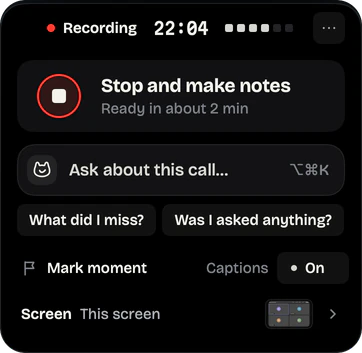
The audio and the recording stay on your Mac. Only text goes, through Lola Notes' server to our AI provider, to write the notes. See exactly which text.
Option 3: free, with QuickTime or the Screenshot app
QuickTime's New Screen Recording and the Screenshot app (⇧⌘5) can both record the Slack window. On macOS 26 they capture your mic, so teammates are only heard faintly through your speakers. On macOS 27, the Screenshot app's Include System Audio option adds the huddle's sound.
Many huddles are audio only, so you'd keep a mostly still video with no transcript. Screen recording with internal audio on a Mac has the full steps.
Tell the huddle you're recording
Slack tells everyone when its AI notes start. A recording made on your Mac sends no notice. So say it when the huddle starts, or post a line in the huddle thread: "I'm recording this for my notes. Tell me if you'd rather I didn't." More ways to ask.
If it isn't working
The recording only has your voice
Your tool recorded the microphone, not the huddle's sound. Use an app that captures the call's audio, or the Screenshot app's Include System Audio on macOS 27.
You can't find "AI notes"
AI notes need a paid plan, and won't run with guests or external people in the huddle. Your workspace admin may also control AI features.
You hear echo in the recording
Speakers leak into your mic. Headphones help. Lola Notes filters out echo of the call picked up by your mic.
Questions
Does Slack notify people when I record a huddle?
Slack tells everyone when AI notes start. If you record on your Mac instead, Slack shows nothing, so tell people yourself.
Can I use Slack AI notes in a huddle with guests?
No. Slack's help page says AI notes don't work in huddles with external people or guests. Recording on your Mac still works; tell everyone first.
Sources
Checked on 1 Oct 2026. Products change, so follow the links for the current details.
Related
Get early access
Leave your email and we'll tell you when you can try Lola Notes. The Free plan needs no card.